Why Does My IPTV Keep Buffering? 9 Fixes That Actually Work
Buffering during the footy is the worst. Most IPTV freezing comes down to a handful of fixable causes — internet speed, Wi-Fi, player settings or your provider. Here are 9 fixes, in the order to try them.
IPTV Australia Team
Updated 8 June 2026

You've settled in for the footy, grabbed a cold one, and thirty seconds into kick-off the screen freezes — that spinning circle doing its thing. IPTV buffering is one of the most frustrating problems you can run into, but the good news is that it almost always has a simple, fixable cause. This guide walks you through nine proven fixes in the exact order to try them, so you can stop guessing and start watching.
Most buffering problems boil down to one of a handful of culprits: internet speed, Wi-Fi signal, device settings, or — less commonly — the provider itself. Work through these fixes from top to bottom and you'll almost certainly nail the problem before you get to the bottom of the list. We've written this guide specifically for Australian viewers on the NBN, but the fixes apply whether you're on cable, 5G home internet or anything else.
Why IPTV buffers in the first place
IPTV is fundamentally different from YouTube or Netflix. Those services use adaptive bitrate streaming with massive global content delivery networks — they pre-cache chunks and adjust quality moment to moment to hide network hiccups. Most IPTV services stream live channels in real time, which means there's very little buffer to absorb a brief slowdown. When the data can't arrive fast enough to keep up with playback, you see that spinning circle.
The data has to travel from the IPTV server, through your ISP's network, through your router, across your Wi-Fi (or down a cable), to your streaming device, into the player app, decoded by the processor, and finally rendered on screen — all in fractions of a second, live. Any weak link in that chain is enough to cause a stall. The good news is that most weak links are easy to identify and fix.
The four main causes
In rough order of how often they're actually the culprit:
- Insufficient or unstable internet speed — not enough raw throughput to sustain the stream, especially on the NBN during peak hours.
- Wi-Fi interference or signal weakness — your device is too far from the router, on the wrong frequency band, or competing with neighbours' networks.
- Player or device settings — the hardware decoder in your app doesn't match what your device can handle, or the app has accumulated buggy cached data.
- An oversold provider — the IPTV server itself is congested at peak times, and no amount of local troubleshooting will fix a problem that lives upstream.
Here's a summary of all nine fixes and what symptom each one is most likely to solve — use it as a quick reference if you've already done some initial troubleshooting:
| Fix | Symptom it solves |
|---|---|
| 1. Check internet speed | Constant buffering on all channels, all the time |
| 2. Ethernet or 5GHz Wi-Fi | Intermittent drops, buffering only on the TV (phone is fine) |
| 3. Restart router & device | Buffering that suddenly started, or only happens in the evenings |
| 4. Switch decoder | Stutter, frame drops or freezing with good internet speed |
| 5. Lower stream quality | Buffering only on 4K channels, or on older devices |
| 6. Free up bandwidth | Buffering only when others are online at home |
| 7. Clear cache & update | App crashes, slow EPG, buffering that started after an update |
| 8. VPN on or off | Buffering that started when you enabled/disabled a VPN |
| 9. Change provider | Buffering only at peak hours, only on this provider's streams |
Fix 1: Check your internet speed
This sounds obvious, but there's an important detail most people miss: you need to run the speed test on the device doing the streaming, not on your phone or laptop. Your Firestick sitting in the bedroom might be getting a much weaker signal than your phone in your hand in the lounge.
What speeds you actually need
The general benchmarks for smooth IPTV are:
- HD (1080p/FHD): at least 25 Mbps at the device, consistently — not just peak burst speed.
- 4K (UHD): at least 50 Mbps. High-bitrate 4K60 sport content can spike well above 30 Mbps for a single stream, so 50 Mbps gives you headroom for the rest of the household too.
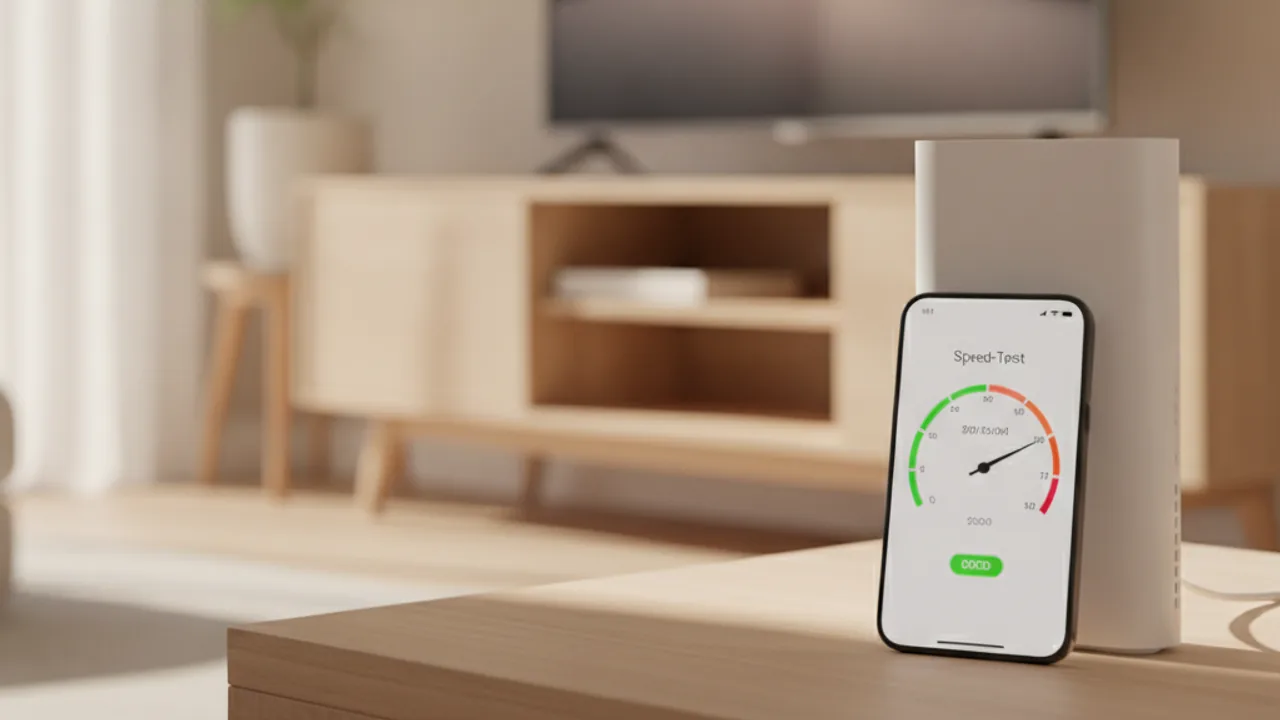
The simplest way to check: on your Firestick or Android TV, install the Speedtest by Ookla app (it's free in the app stores) and run it right there on the TV. Do it at the same time of day you normally stream — evening NBN speeds can be noticeably lower than daytime results. If you're on the NBN, the nbn speed test tool also lets you check against your plan's expected speeds.
What to do if your speed is too low
If the test shows you're under 25 Mbps at the device, that's your culprit. The next two fixes — switching to Ethernet or 5GHz Wi-Fi — are usually all it takes to lift the speed at the device even if your plan is perfectly fine.
If you're consistently under 25 Mbps even on a wired connection, it may be worth checking your NBN plan. Many Australians are on an NBN 25 plan and not realising the plan itself is the ceiling. Upgrading to an NBN 50 or NBN 100 plan is often only a few dollars more per month and makes a significant difference to evening streaming.
Fix 2: Use Ethernet or 5GHz Wi-Fi
Wi-Fi is the most common weak link in a home IPTV setup. Even if your plan is fast, a shaky wireless connection causes the exact kind of intermittent packet loss that makes live streams stutter and freeze. The fix is either a physical cable or a move to the faster wireless band.
Ethernet: the gold standard
A wired Ethernet connection is stable, low-latency, and immune to the wireless interference that plagues home networks. For a Firestick, you'll need a cheap Ethernet adapter — the Amazon-branded one runs around $20 from Amazon Australia, JB Hi-Fi or the Warehouse, and it makes a genuinely dramatic difference. Android TV boxes typically have an Ethernet port built in. Smart TVs almost always do too — check the back panel.
If running a cable across the room isn't practical, a pair of powerline adapters (around $60–80) can get Ethernet to any room in the house over the existing wiring.
5GHz Wi-Fi: the next best thing
If cabling isn't an option, make sure your streaming device is connecting on the 5GHz band rather than 2.4GHz. Here's why it matters:
2.4GHz vs 5GHz for IPTV
The 2.4GHz band has longer range but is heavily congested — your neighbours' Wi-Fi, microwave, baby monitor and smart home devices all fight for space on it. It's also limited to lower speeds. The 5GHz band is faster and far less congested, but has shorter range.
How to check which band you're on
On a Firestick: Settings → Network → select your current connection and look for the band in the details. On an Android TV box: Settings → Network → Wi-Fi → your connected network. If it says 2.4GHz, look for a separate 5GHz network in your router's list (often named the same but with a "5G" suffix) and switch to it.
If your router doesn't broadcast a separate 5GHz network, log into your router's admin panel (usually 192.168.0.1 or 192.168.1.1) and look for the wireless settings. Most NBN-supplied routers support 5GHz; you may just need to enable it.

Router placement matters
If you're on Wi-Fi, distance and obstacles are your enemy. Every wall, floor and appliance the signal passes through degrades it. Move your router to a central, elevated position. If the TV is more than two rooms away, consider a Wi-Fi extender or mesh system — modern mesh units (Eero, TP-Link Deco, Google Nest) are under $150 and reliably cover a whole house.
Fix 3: Restart your router and device
It sounds like the tech support cliché, but restarting genuinely fixes a real class of IPTV buffering problems — and here's why.
Routers are computers. They run for days or weeks without being rebooted, accumulating stale DHCP leases, DNS cache entries and fragmented memory. During NBN peak hours, your router's connection table fills up with thousands of simultaneous flows from every device in the house. A restart clears all of that and gives you a fresh connection — often one that's noticeably faster.
The right way to restart
Don't just use the router's restart button if it has one. Pull the power cable, wait a full 30 seconds (this drains the capacitors and forces a clean cold start), then plug it back in. Wait for all the lights to stabilise — usually 60–90 seconds — before testing the stream again.
While you're at it, restart the streaming device too. On a Firestick: Settings → My Fire TV → Restart. On Android TV: Settings → About → Restart, or just hold the power button. Clearing the device's memory frees up RAM that the player needs to buffer the stream.
If your IPTV consistently buffers in the evenings but clears up overnight, make it a habit to restart your router at 6:30pm, before the peak-hour crunch. It takes 90 seconds and often resolves the problem entirely.
Fix 4: Switch the player's decoder
This is the fix that surprises the most people — and fixes the most problems. The decoder is the component that takes the compressed video stream and turns it into actual pixels on screen. IPTV player apps offer two options: hardware decoding (uses your device's dedicated video chip) and software decoding (uses the main CPU).
Why the wrong decoder causes buffering
Hardware decoding is generally faster and more efficient, but some devices have buggy or incomplete hardware decoder implementations — especially older Firestick models or certain Android TV boxes — that cause stuttering, green screens or freezing with certain video codecs. Software decoding is slower but more compatible: if the hardware chip can't handle the codec, the CPU can.
Some 4K HEVC (H.265) streams can also overwhelm a software decoder on a low-end device, in which case switching to hardware decoding (if it's currently on software) is the fix.
How to switch in IPTV Smarters Pro
Open IPTV Smarters Pro, tap the three-bar menu in the top-left, and go to Settings → Player Settings. Find the toggle labelled "Hardware decoder" and switch it — if it's currently on, turn it off; if it's off, turn it on. Then close and reopen the app and test a channel. Most people see an immediate improvement.
How to switch in TiviMate
In TiviMate, go to Settings → Playback and toggle "Hardware decoding" on or off. Save and restart the app, then reopen a channel.
If you've tried both decoder settings and neither helps, also check the "Player" selection in Smarters Pro (some versions let you switch between the built-in player and ExoPlayer). Different players handle different streams differently. Our comparison of IPTV Smarters Pro vs TiviMate covers more detail on player options if you're unsure which app to use.
Fix 5: Dial down the stream quality
A lot of IPTV providers — including IPTV Australia — offer multiple quality tiers for popular channels: a 4K version, an FHD (1080p) version, and sometimes an HD (720p) version. They're all the same channel, just encoded at different bitrates.
When to use a lower-quality stream
If you're buffering on 4K channels but HD channels play fine, the issue is bitrate — your connection can handle the stream, just not the 4K version of it. Switch to the FHD version of the channel. You'll still get a great-looking picture on almost any TV screen under 75 inches — the difference between FHD and 4K is practically invisible unless you're sitting close to a very large screen.
Device limitations with 4K
Not all devices can smoothly decode 4K60 streams even with a fast connection. The original Firestick Lite and the older Firestick HD models cap out at 1080p and can struggle with high-bitrate 4K60 sport content. If that's your device, the FHD version of sports channels isn't a compromise — it's the right choice for that hardware.
If you want to watch 4K sport without buffering, the Firestick 4K Max handles it smoothly. So does the Nvidia Shield Pro, which is the premium option for serious home cinema setups. Both handle 4K60 with high-bitrate HEVC streams without breaking a sweat.
Fix 6: Free up your bandwidth
Your NBN connection is shared by everyone and everything in your home. When multiple devices are all pulling data at once, the available bandwidth shrinks — and your IPTV stream is competing with everyone else for a slice.
What eats bandwidth without you realising
The biggest hidden bandwidth drains are:
- Game console updates — a PlayStation or Xbox downloading a 50 GB game update in the background can saturate even a fast NBN 50 connection. Check your consoles' download settings and pause active downloads before the game.
- Other streaming services — every Netflix, Stan or YouTube stream in the house uses 5–25 Mbps. Three kids streaming in HD while you're trying to watch 4K footy will cause problems on most NBN plans.
- Cloud backup services — iCloud, Google Photos and Dropbox often run uploads in the background. Upload traffic on an asymmetric NBN connection can also introduce latency that affects real-time streams.
- Smart home devices — most are low bandwidth individually, but a dozen of them chattering away adds up.
How to check and fix it
Log into your router's admin page and look for a bandwidth monitor or connected-devices list (often under "Traffic" or "Diagnostics"). Most modern routers can tell you in real time which device is using the most bandwidth. Pause anything you find, then retest the stream.
If bandwidth fights are a regular problem during sport season, it's worth setting up Quality of Service (QoS) rules on your router to give the streaming device priority. Most mid-range routers (TP-Link Archer, Asus, Netgear Nighthawk) have QoS settings in their admin panel — prioritise the IP or MAC address of your streaming device and it'll get first dibs on the bandwidth.
Fix 7: Clear the cache and update
IPTV player apps accumulate cached data over time — saved channel lists, EPG data, thumbnails and temporary files. On Firestick models with limited storage (the Lite only has 8 GB), this can genuinely fill up and cause the app to behave strangely: stuttering, crashing on launch, or a slow/non-loading TV guide.
Clearing the app cache on a Firestick
Go to Settings → Applications → Manage Installed Applications, select your IPTV player (Smarters Pro or TiviMate), and tap "Clear cache." You don't lose your login or playlists — those are stored separately. Restart the app afterwards.
If clearing the cache doesn't help, the nuclear option is "Clear data" (same menu), which resets the app completely. You'll need to re-enter your login details, but if corrupted data was the problem this definitively fixes it.
Refresh the EPG separately
If the app itself plays fine but the TV guide is slow, blank or frozen, the EPG data is usually the issue rather than the stream. In Smarters Pro, go to Settings → EPG and tap "Refresh EPG." In TiviMate, Settings → EPG → Update. A large EPG database (35,000+ channels have a lot of guide data) can take a minute or two to update, but once it's done the guide snaps back to normal.
Keep the app updated
Running an outdated version of your player can cause compatibility issues as providers update their streaming infrastructure. Check the app store for updates and install them. On Firestick, you may need to manually re-sideload a newer APK — your provider should send updated download links when a new version drops. See our Firestick setup guide for the sideload process.
Fix 8: Try a VPN (or turn it off)
VPNs are worth mentioning because they can cause buffering and they can fix it — depending on your specific situation.
When a VPN helps
Some Australian ISPs throttle "unrecognised" streaming traffic. If yours does, routing your IPTV traffic through a VPN disguises it as ordinary encrypted traffic and can get around the throttle. This is relatively rare but does happen. If you've noticed that speeds drop specifically when you're streaming (but not when you do a regular speed test), your ISP may be inspecting traffic.
When a VPN hurts
A VPN routes all your traffic through an extra server before it reaches the IPTV server. If that extra server is slow, distant or overloaded, it adds latency and reduces throughput — making buffering worse, not better. If you're currently using a VPN and experiencing buffering, the first thing to try is turning it off. Our streams work perfectly well on all major Australian ISPs without a VPN.
If you want to use a VPN
Choose a fast provider (Mullvad, ExpressVPN and NordVPN all have fast Australian servers) and connect to an Australian server. Routing your traffic to Australia and back adds much less latency than routing it to Singapore or the US. You want the VPN to help with throttling, not introduce new bottlenecks.
Fix 9: It might be your provider
You've checked your speed. You're on Ethernet. You've restarted everything, switched the decoder, lowered the quality, paused every other device in the house, cleared the cache and tried the VPN both ways. If it's still buffering, especially during the evenings and especially during popular sport, the problem is almost certainly on the server side — and that means your provider.
The overselling problem
Running an IPTV service is about more than just buying a server and loading it with channels. The server infrastructure needs to be scaled for the peak demand — which in Australia means handling a spike of thousands of simultaneous connections at 7pm on a Saturday during the AFL finals. Cheap, poorly-run services oversell their capacity. They work fine at 2pm on a Tuesday; they buffer relentlessly at 8pm on a Friday. No local fix will help because the problem is their hardware, not yours.
How to tell if it's your provider
The pattern is the giveaway. If the buffering:
- Only happens with your IPTV service (YouTube and Netflix are smooth)
- Is reliably worse between 7pm and 11pm
- Is worst during popular live events like AFL, NRL, or the State of Origin
- Was fine when you first subscribed but got worse over time
…then the server is the problem.
The right way to change providers
Don't pay for a new subscription before you test it. A provider that's worth your money should offer a free trial — no card required — so you can run it on your actual setup during your actual viewing time before you hand over any money. Test it on a Friday or Saturday evening during a live sport event. If it buffers then, move on. If it's smooth, you've found your fix.
That's exactly what we built IPTV Australia for. Our infrastructure is specifically sized and optimised for Australian peak hours — because that's when Australians watch, and that's when every other cheap service falls over. You can check our AUD pricing or try us free first. The trial takes 60 seconds to set up over WhatsApp, and you'll know within the first evening whether we're the right fit for you.
For a full rundown of what to look for in a provider, our best IPTV Australia guide walks through the criteria honestly — including the questions to ask any provider before you pay.
Your setup: now buffer-proof
Work through these nine fixes in order and you'll almost certainly stop the buffering — or at least understand exactly where the weak link is. Most people find the problem somewhere between Fix 2 and Fix 4, before they even need to think about the provider. But if you're confident you've done everything right on your end and it's still happening, the final fix really does work — a better provider, tested honestly with a free trial during peak hours, is the last piece.
If you get stuck at any point, you can always message the IPTV Australia team directly on WhatsApp. We're happy to help you troubleshoot even if you're not a customer yet — it's just easier to watch TV when everything's working properly.
Frequently asked questions
Why does my IPTV keep buffering even though my internet is fast?
A fast speed-test result doesn't always tell the full story. The issue could be Wi-Fi interference (especially on 2.4GHz), another device hogging bandwidth, a mismatch between your player's hardware decoder and your device, or the IPTV server itself being congested during peak hours. Work through the fixes in order — decoder switching and moving to 5GHz Wi-Fi resolve the majority of cases where the raw speed looks fine.
How much internet speed do I need for IPTV in Australia?
At least 25 Mbps for smooth HD streaming, and 50 Mbps or more for 4K. Importantly, run the speed test on the actual device you're streaming on — not just your phone — and do it at the same time of day you normally watch, since NBN evening speeds can be lower than daytime speeds.
Why does my IPTV buffer at night but not during the day?
This is almost always NBN peak-hour congestion, which runs roughly 7pm–11pm. Your ISP's network is under the heaviest load during that window, which reduces your effective speed even if your plan is fast. The short-term fix is restarting your router at the start of the evening to get a fresh connection. The longer-term fix is choosing an IPTV provider whose servers are built for Australian peak hours — that's exactly what IPTV Australia is optimised for.
Does a VPN help or hurt IPTV buffering?
It can go either way. A VPN helps if your ISP is throttling streaming traffic — routing around it can restore speed. But a slow or distant VPN server adds latency and reduces throughput, making buffering worse. If you use a VPN, choose a server physically in Australia on a fast provider. If you don't use one, you don't need to start — IPTV Australia works fine on all major Australian ISPs without a VPN.
How do I switch the hardware decoder in IPTV Smarters Pro or TiviMate?
In IPTV Smarters Pro: tap the three-bar menu, go to Settings → Player Settings, and toggle 'Hardware decoder' to Software (or back to Hardware if it's already on Software). In TiviMate: go to Settings → Playback and toggle hardware decoding off or on. Restart the app after changing it, then test a channel. This single change fixes a surprising number of stutter and freezing issues.
Try IPTV Australia free
See it on your own TV — free for 24 hours
35,000+ channels, every game in 4K and 90,000+ movies & shows. No card, no contract — just message us on WhatsApp and you'll be watching in minutes.
Keep reading
 Guides · 12 min
IPTV Smarters Pro vs TiviMate: Which Player Is Best in 2026?
Two apps dominate IPTV in Australia: Smarters Pro runs on everything, TiviMate has the slickest TV guide. We compare them head to head on features, devices, price and feel — and tell you which to pick.
Read article Legal · 12 min
Is IPTV Legal in Australia? An Honest 2026 Guide
IPTV apps and the technology behind them are completely legal in Australia — the nuance is all about content licensing. Here's what the law really says in 2026, in plain English.
Read article